

Purpose
StudyStash Course Sync is a Moodle local plugin that helps administrators roll out the StudyStash LTI activity across courses at scale. Instead of enabling StudyStash manually in each course, the plugin queues a sync task that checks every eligible course and adds the StudyStash activity only where it is missing. It is safe to run multiple times: courses that already contain the configured StudyStash activity are skipped, and only new or missing courses are updated. Admins can also exclude selected courses from sync and preview the result using a dry run before making live changes.Action | Explanation |
|---|---|
Dry Run | Previews which courses would get StudyStash based on current config/exclusions. |
Sync StudyStash to Courses | Enables StudyStash in eligible courses that do not already have it. |
Course exclusions | Lets admins choose courses that must be skipped by sync. |
Prerequisites
-
Moodle version must be
>= 2022041900(Moodle 4.0+) -
Administrative access (
moodle/site:config) to your Moodle Instance - A valid preconfigured LTI tool for StudyStash already exists
- Cron running within Moodle
- Your Customer Success Manager has provided the Plugin via a ZIP file
Step 1: Installing the plugin
-
Go to
https://<your-moodle-instance>/admin/tool/installaddon/index.php - Upload the ZIP file provided to you by StudyStash by pressing “Choose a file…”
- Press “Show more…”
- Set the “Plugin type” to be “Local plugin (local)”
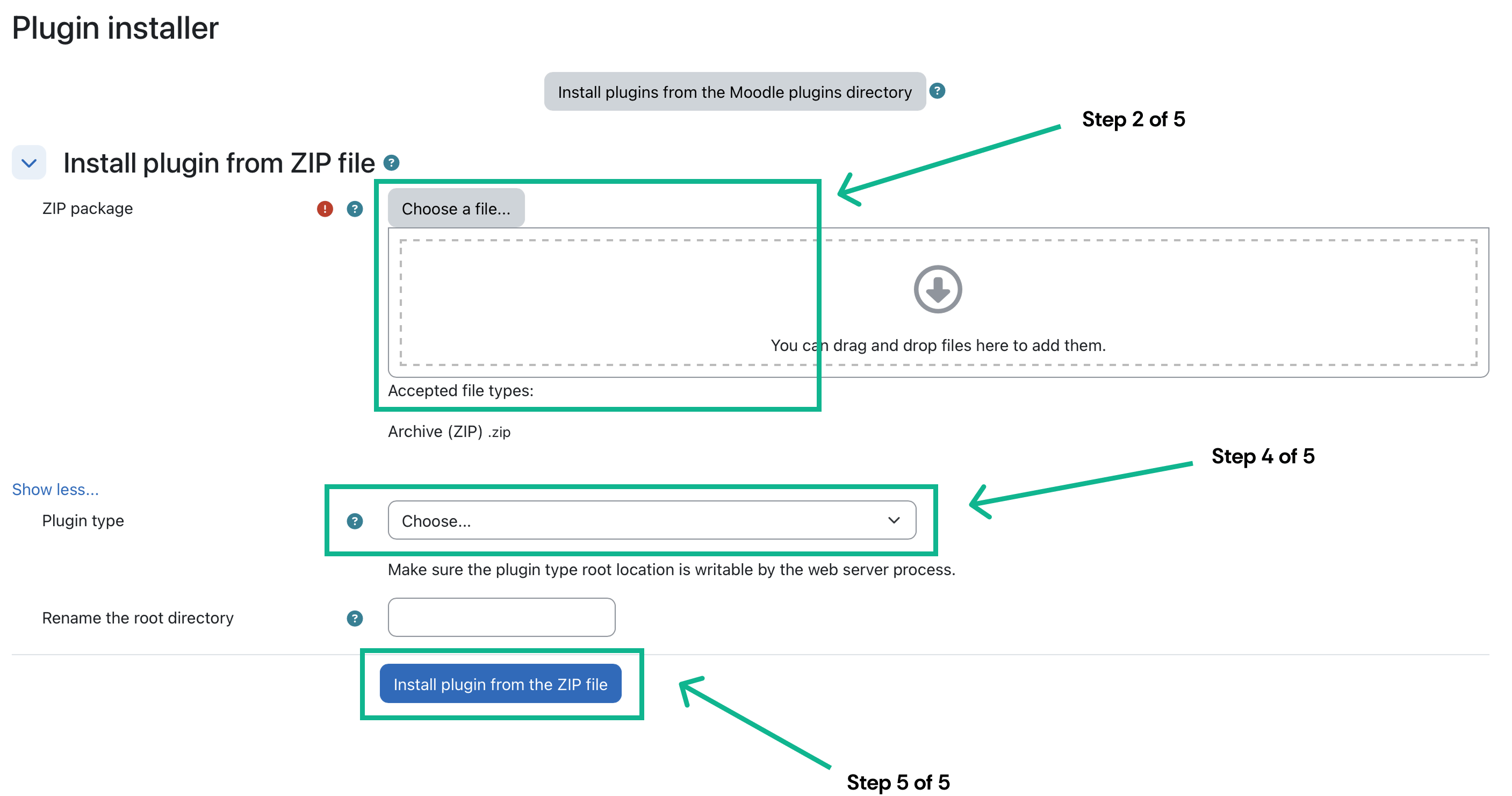
Figure 1. Moodle Plugin: Syncing StudyStash to Courses (Opt-Out Mode) — screenshot 1
- Press “Install plugin from the ZIP file”
- After the validation message, press “Continue”
- After the server checks message, press “Continue”
-
After the plugins check message, press “Upgrade Moodle database now”
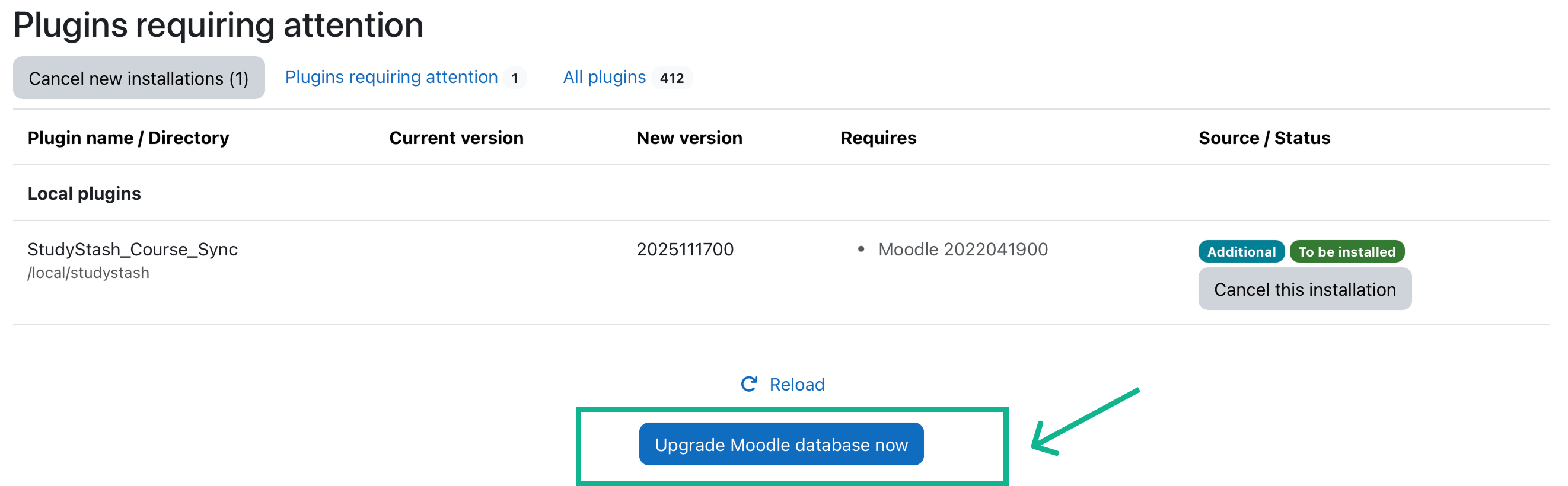
Figure 2. Moodle Plugin: Syncing StudyStash to Courses (Opt-Out Mode) — screenshot 2
- If an “Upgrading to new version” message appears, press “Continue”
Step 2: Configuring the plugin
After installing the plugin (step 1), you will be required to configure the new settings that are available.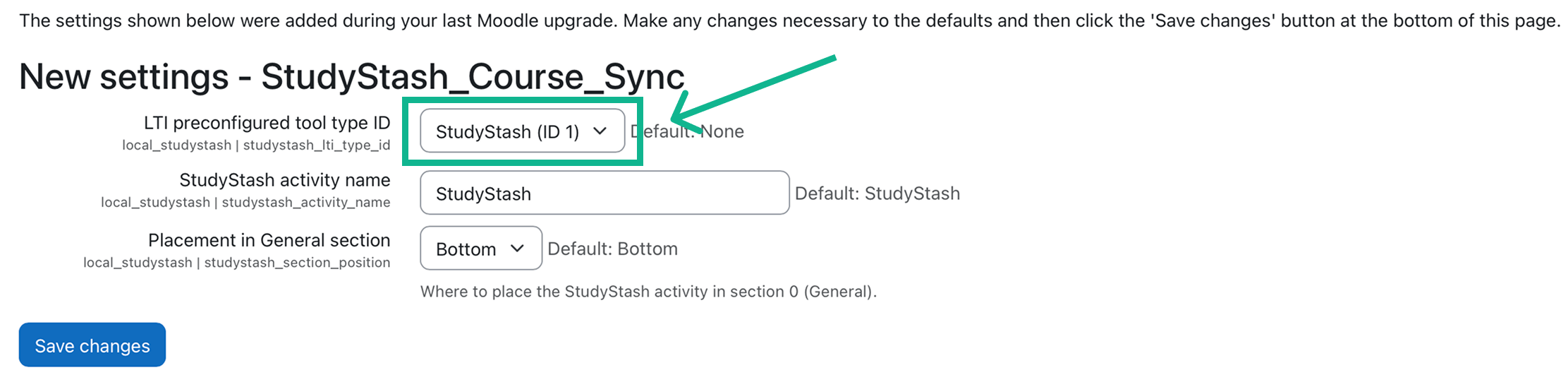
Figure 3. Moodle Plugin: Syncing StudyStash to Courses (Opt-Out Mode) — screenshot 3
- Enter the following settings:
Setting | Value | Type |
|---|---|---|
LTI preconfigured tool type ID | Select the correct ‘StudyStash’ LTI Activity Module from the dropdown | Required |
StudyStash activity name | StudyStash | Optional |
Placement in General section | Bottom | Optional |
- Press the “Save changes” button
-
Go to
https://<your-moodle-instance>/local/studystash/index.php
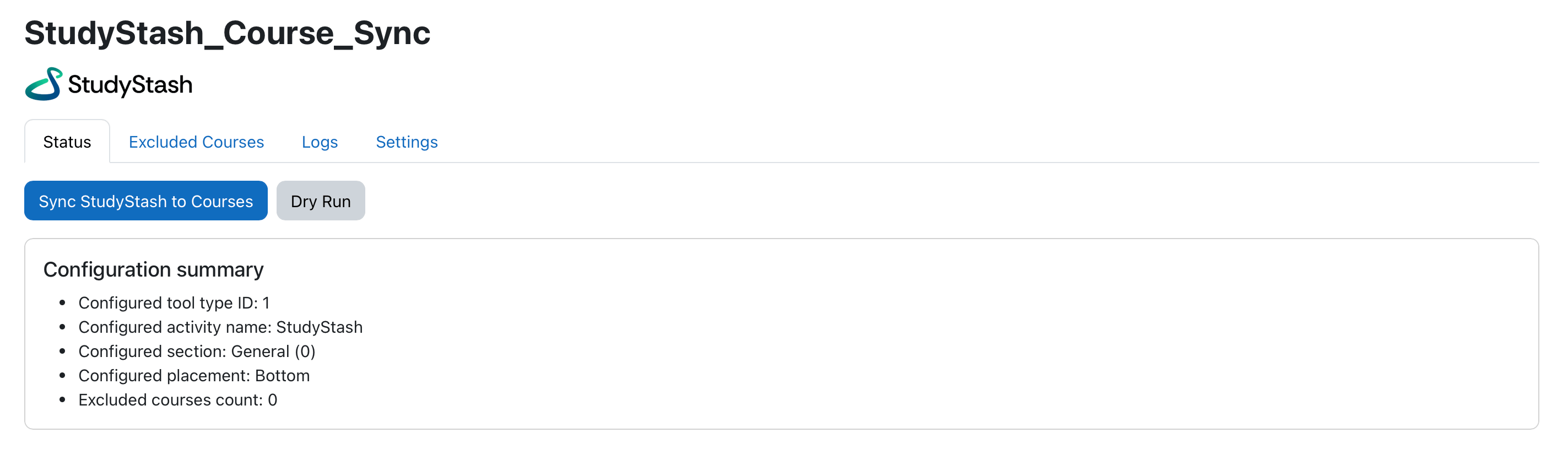
Figure 4. Moodle Plugin: Syncing StudyStash to Courses (Opt-Out Mode) — screenshot
-
Press the “Excluded Courses” tab, and optionally exclude any courses that shouldn’t be given the StudyStash Activity Module:
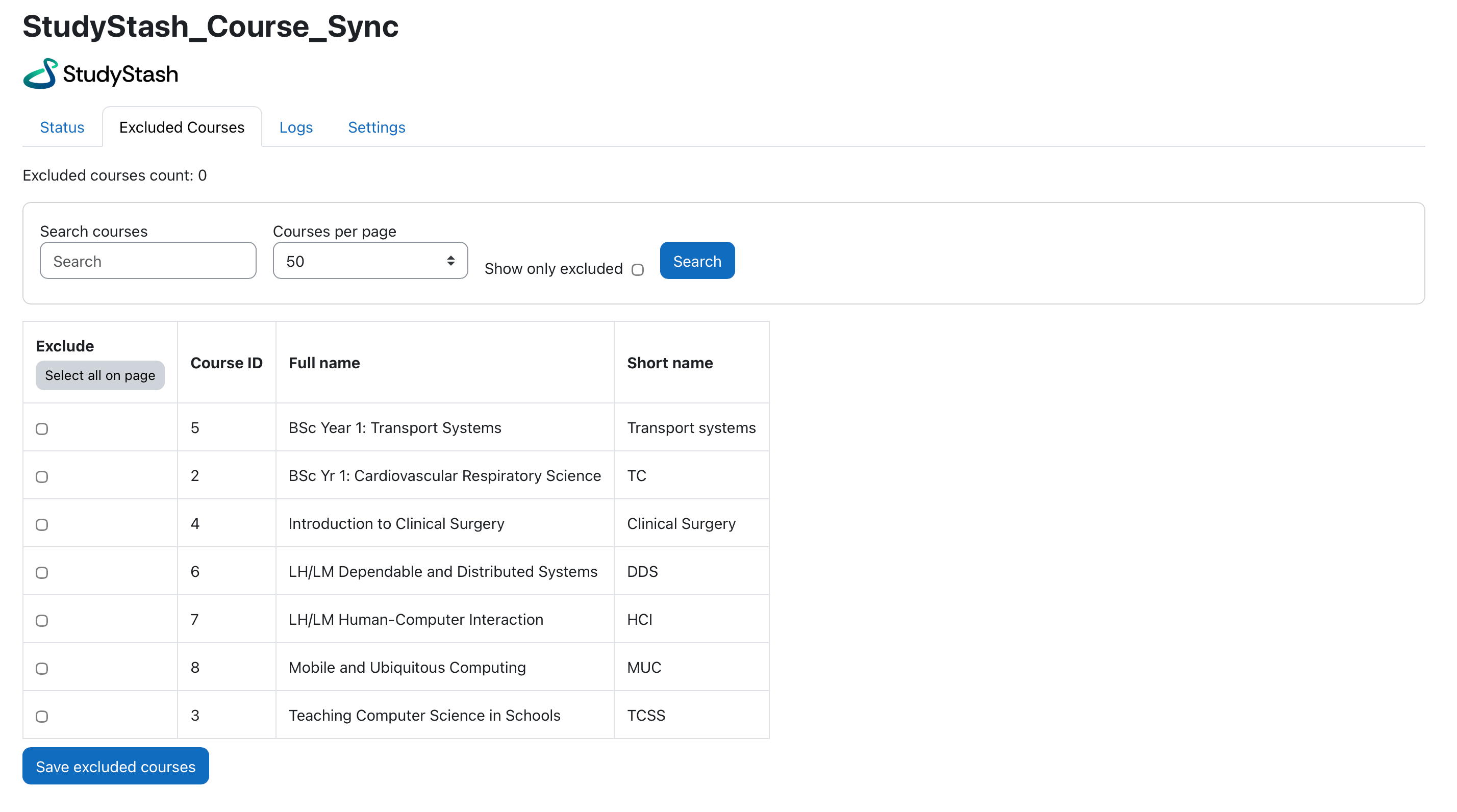
Figure 5. Moodle Plugin: Syncing StudyStash to Courses (Opt-Out Mode) — screenshot
- Using the filters, narrow the search for the courses you are aiming to exclude
- Select the checkbox for any courses that are to be excluded
- Press “Save excluded courses”
- Return to the “Status” tab
-
Optionally, you can Dry Run the sync:
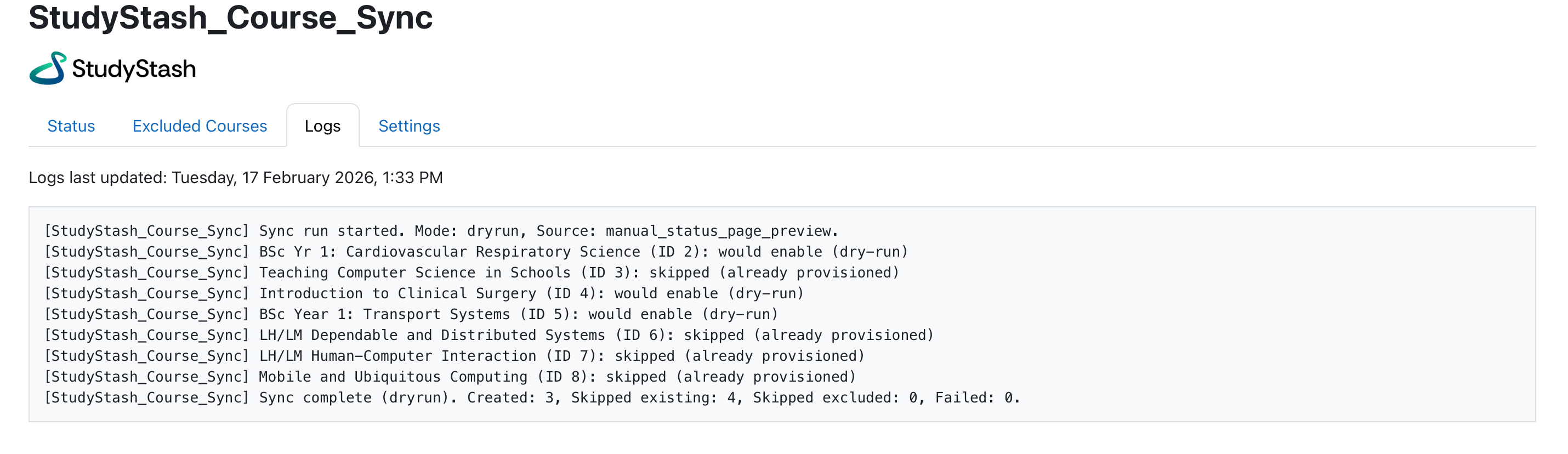
Figure 6. Moodle Plugin: Syncing StudyStash to Courses (Opt-Out Mode) — screenshot
- Press “Dry Run”, and wait a few seconds/minutes for the task to complete (depending on how many courses you have)
- Press the “Logs” tab
- Examine logs to ensure behavior is as expected for each course
-
To complete the sync for real, press “Sync StudyStash to Courses” on the “Status” tab:
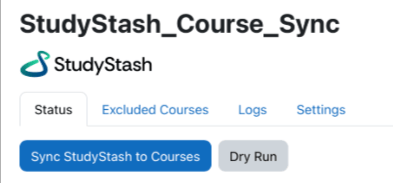
Figure 7. Moodle Plugin: Syncing StudyStash to Courses (Opt-Out Mode) — screenshot