> ## Documentation Index
> Fetch the complete documentation index at: https://help2.studystash.com/llms.txt
> Use this file to discover all available pages before exploring further.
# Open StudyStash in new window (D2L Brightspace)
> By default, Brightspace may display StudyStash embedded within the course page.
This can limit the visual space students have to work in and can make the tool harder to use. Depending on your set-up, you may want to set StudyStash to open in a new window.
## Setting it for all courses (administrators)
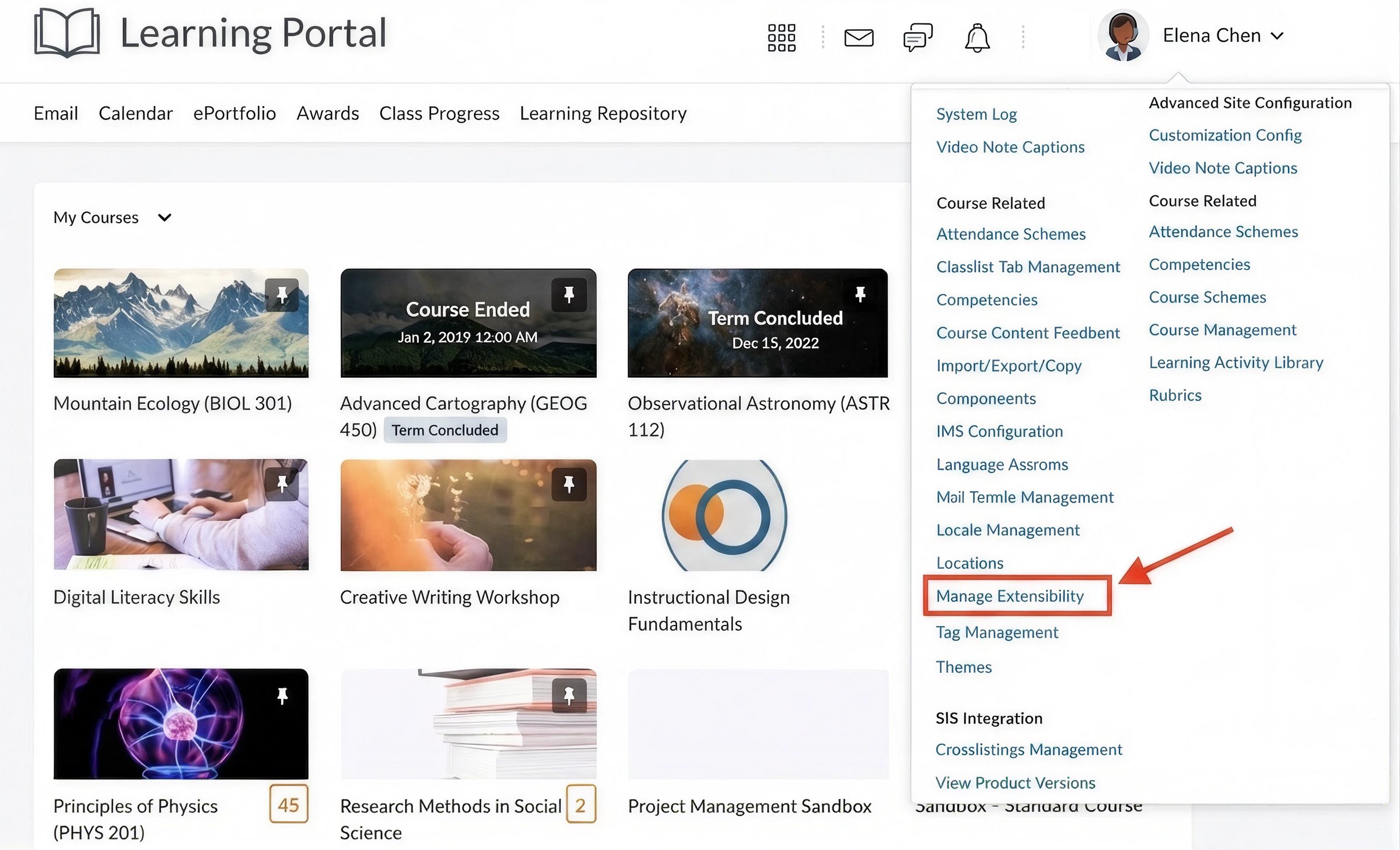
## **Step 1**
Log in to Brightspace as an administrator. Open the admin menu and select **Manage Extensibility**.
 ## **Step 2**
Open the **LTI Advantage** tab, then select the StudyStash deployment (under **View Deployments**).
## **Step 3**
In the deployment configuration, scroll to the **Configuration Settings** section. By default, **Open as External Resource** is unticked.
## **Step 4**
Tick **Open as External Resource**, then select **Save**.
### Need support?
If you can't find this setting or would like us to walk through it with you, contact your StudyStash Customer Success Manager, or [support@studystash.com](mailto:support@studystash.com), and we'll be happy to help.
This documentation is built and hosted on [Mintlify](https://mintlify.com), a developer documentation platform.
## **Step 2**
Open the **LTI Advantage** tab, then select the StudyStash deployment (under **View Deployments**).
## **Step 3**
In the deployment configuration, scroll to the **Configuration Settings** section. By default, **Open as External Resource** is unticked.
## **Step 4**
Tick **Open as External Resource**, then select **Save**.
### Need support?
If you can't find this setting or would like us to walk through it with you, contact your StudyStash Customer Success Manager, or [support@studystash.com](mailto:support@studystash.com), and we'll be happy to help.
This documentation is built and hosted on [Mintlify](https://mintlify.com), a developer documentation platform.