> ## Documentation Index
> Fetch the complete documentation index at: https://help2.studystash.com/llms.txt
> Use this file to discover all available pages before exploring further.

# Blackboard Integration Guide (LTI)

> Follow this installation guide to integrate StudyStash with Blackboard using manual registration. StudyStash also supports dynamic registration upon request.

**For ADMINISTRATORS**

Follow this installation guide to integrate StudyStash with Blackboard using manual registration. StudyStash also supports dynamic registration upon request.

## Prerequisites

You must have Blackboard administrative access with the ability to manage LTI Tool Providers via the Administrator Tools panel.

***

## Step 1: Register StudyStash as an External Tool in Blackboard

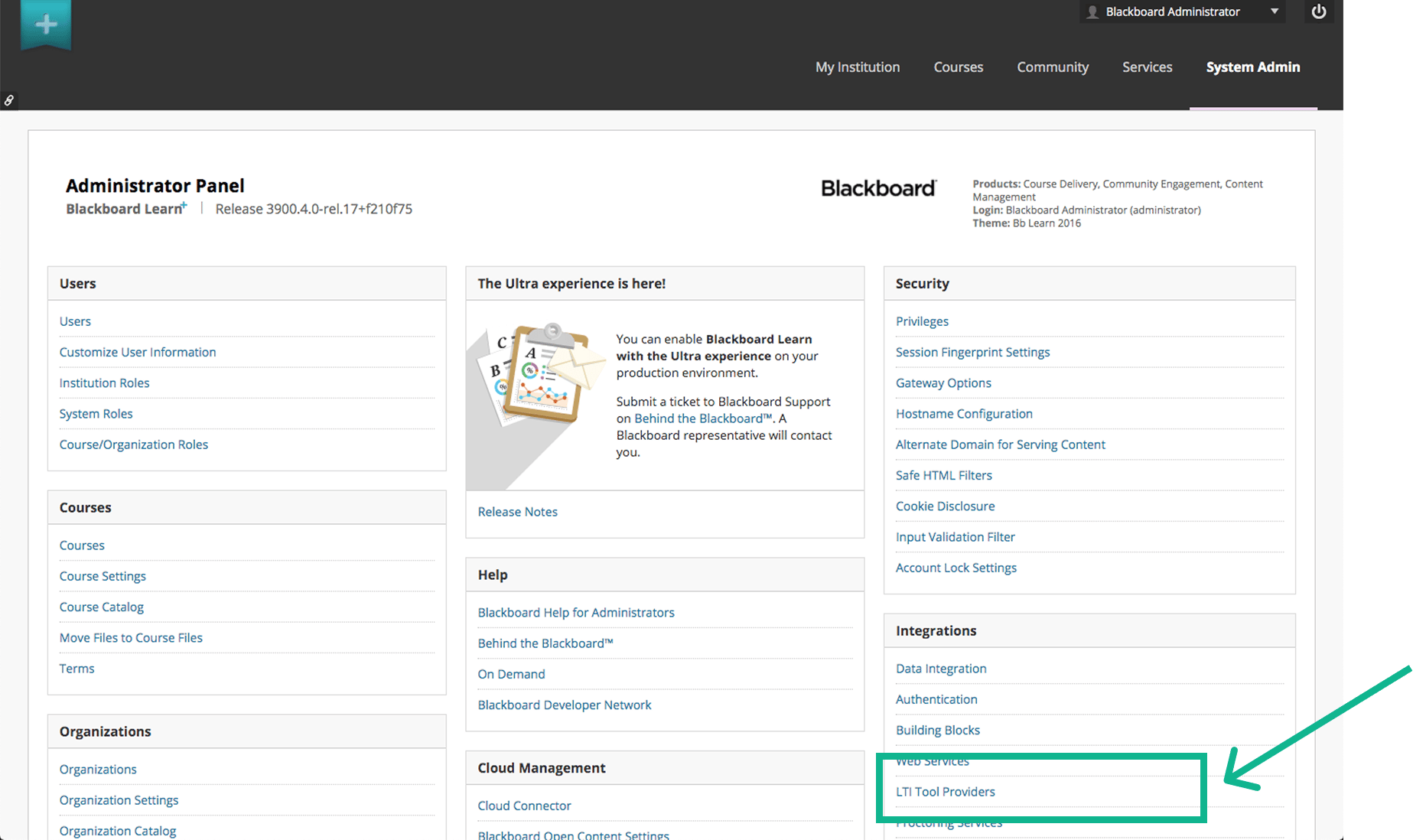
1. From the main menu, click **Admin** to open the **Administrator Tools**

2. In the **Integrations** panel, click **LTI Tool Providers**

<Frame className="ss-screenshot" caption={"**Figure 1.** Blackboard LTI set-up: LTI Tool Providers"}>
  <img loading="lazy" src="https://mintcdn.com/studystash-help/FFz54l9hIeIDPaHl/assets/123076626/122912854-bb-lti.png?fit=max&auto=format&n=FFz54l9hIeIDPaHl&q=85&s=3949b528ce8014c4aa1fb90f5defc86b" alt="Blackboard LTI set-up: LTI Tool Providers" width="1847" height="1098" data-path="assets/123076626/122912854-bb-lti.png" />
</Frame>

3. Click **Register LTI 1.3 / Advantage Tool**

4. Enter the full StudyStash Client ID below and click **Submit**:

**StudyStash Client ID:** `04fac04f-38fa-4c8d-a7f5-7381b045d3ac`

5. Check that the application name is **StudyStash**. Apply the settings in Step 2, then click **Submit** to save the registration.

6. Copy the **Deployment ID** provided by Blackboard. You will need it for the form in Step 3.
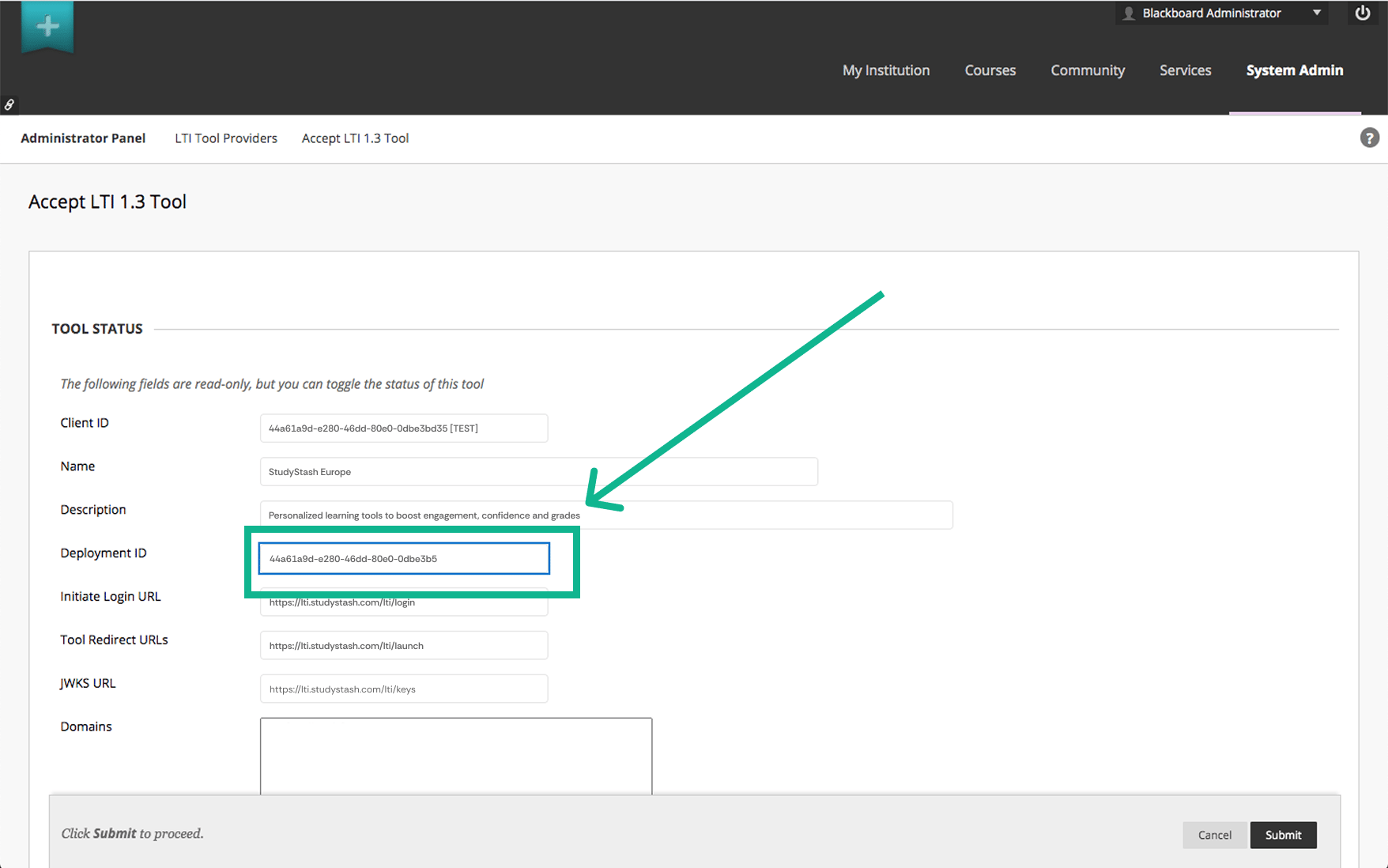
<Frame className="ss-screenshot" caption={"**Figure 2.** Blackboard LTI set-up: Copy Deployment ID for later"}>
  <img loading="lazy" src="https://mintcdn.com/studystash-help/FFz54l9hIeIDPaHl/assets/123076626/123076658-d2l-lti-1.png?fit=max&auto=format&n=FFz54l9hIeIDPaHl&q=85&s=d30c71a9b89381522aa6e80237d040ab" alt="Blackboard LTI set-up: Copy Deployment ID for later" width="1756" height="1098" data-path="assets/123076626/123076658-d2l-lti-1.png" />
</Frame>

***

## Step 2: Verify Set-up Details

Verify the following fields are configured correctly:

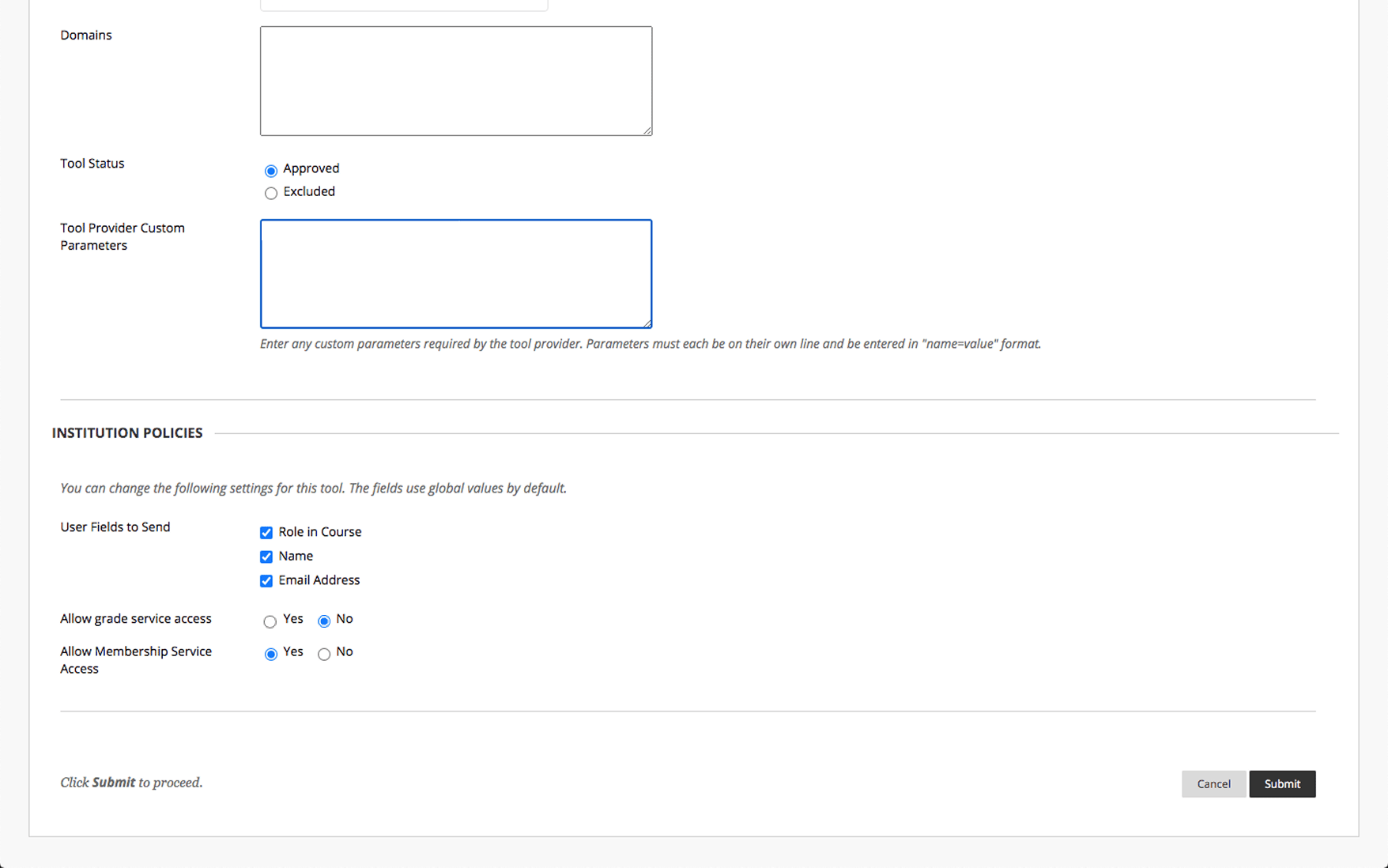
<table>
  <tbody>
    <tr>
      <th>
        <p><strong>Field</strong></p>
      </th>

      <th>
        <p><strong>Value</strong></p>
      </th>
    </tr>

    <tr>
      <td>
        <p>Tool Status</p>
      </td>

      <td>
        <p>Approved (✅)</p>
      </td>
    </tr>

    <tr>
      <td>
        <p>User Fields to Send</p>
      </td>

      <td>
        <p>Role in Course (✅)</p>

        <p>Name (✅)</p>

        <p>Email Address (✅)</p>
      </td>
    </tr>

    <tr>
      <td>
        <p>Allow Grade Service Access</p>
      </td>

      <td>
        <p>No</p>
      </td>
    </tr>

    <tr>
      <td>
        <p>Allow Membership Service Access</p>
      </td>

      <td>
        <p>Yes</p>
      </td>
    </tr>
  </tbody>
</table>

<Frame className="ss-screenshot" caption={"**Figure 3.** Blackboard LTI set-up: Verify fields"}>
  <img loading="lazy" src="https://mintcdn.com/studystash-help/FFz54l9hIeIDPaHl/assets/123076626/122912865-d2l.png?fit=max&auto=format&n=FFz54l9hIeIDPaHl&q=85&s=212bf8d765c83696f29f8d8531efd839" alt="Blackboard LTI set-up: Verify fields" width="1756" height="1098" data-path="assets/123076626/122912865-d2l.png" />
</Frame>

***

## Step 3: Provide Deployment Details to StudyStash

After registering StudyStash in Blackboard, submit the details below so we can enable your institution's LTI integration. Blackboard provides the Deployment ID during registration, so complete Step 1 before submitting this form. Wait for StudyStash to confirm activation, then test a launch before making the tool available to end-users.

<table>
  <tbody>
    <tr>
      <th>
        <p><strong>Field</strong></p>
      </th>
    </tr>

    <tr>
      <td>
        <p>Client ID</p>
      </td>
    </tr>

    <tr>
      <td>
        <p>Deployment URL</p>
      </td>
    </tr>

    <tr>
      <td>
        <p>Deployment ID</p>
      </td>
    </tr>
  </tbody>
</table>

**Enter your organisation's LTI details in the form below:**

[https://internal.support.studystash.com/servicedesk/customer/portal/34/group/107/create/273](https://internal.support.studystash.com/servicedesk/customer/portal/34/group/107/create/273)


This documentation is built and hosted on [Mintlify](https://mintlify.com), a developer documentation platform.