> ## Documentation Index
> Fetch the complete documentation index at: https://help2.studystash.com/llms.txt
> Use this file to discover all available pages before exploring further.

# How do I enable StudyStash in my Moodle course?

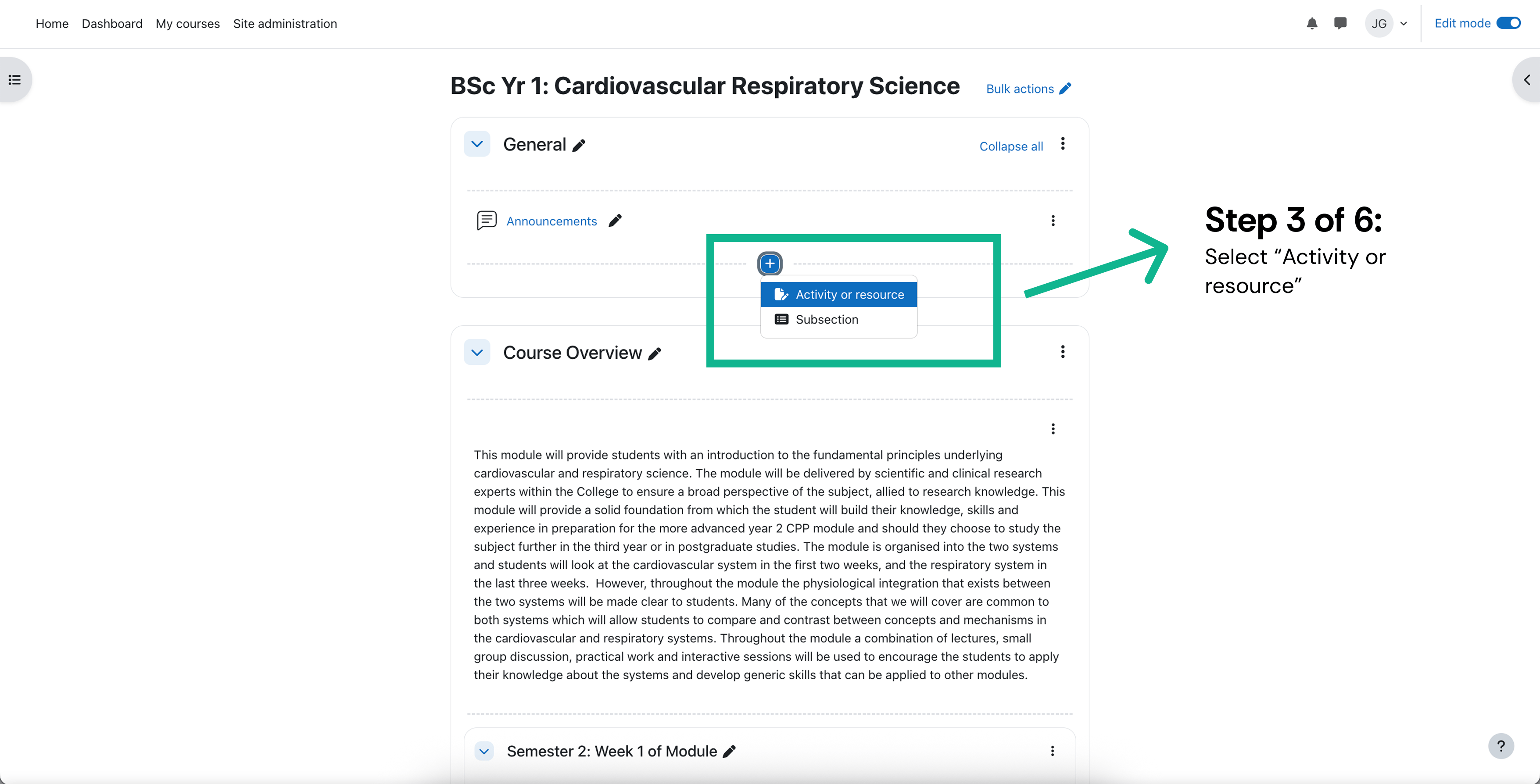
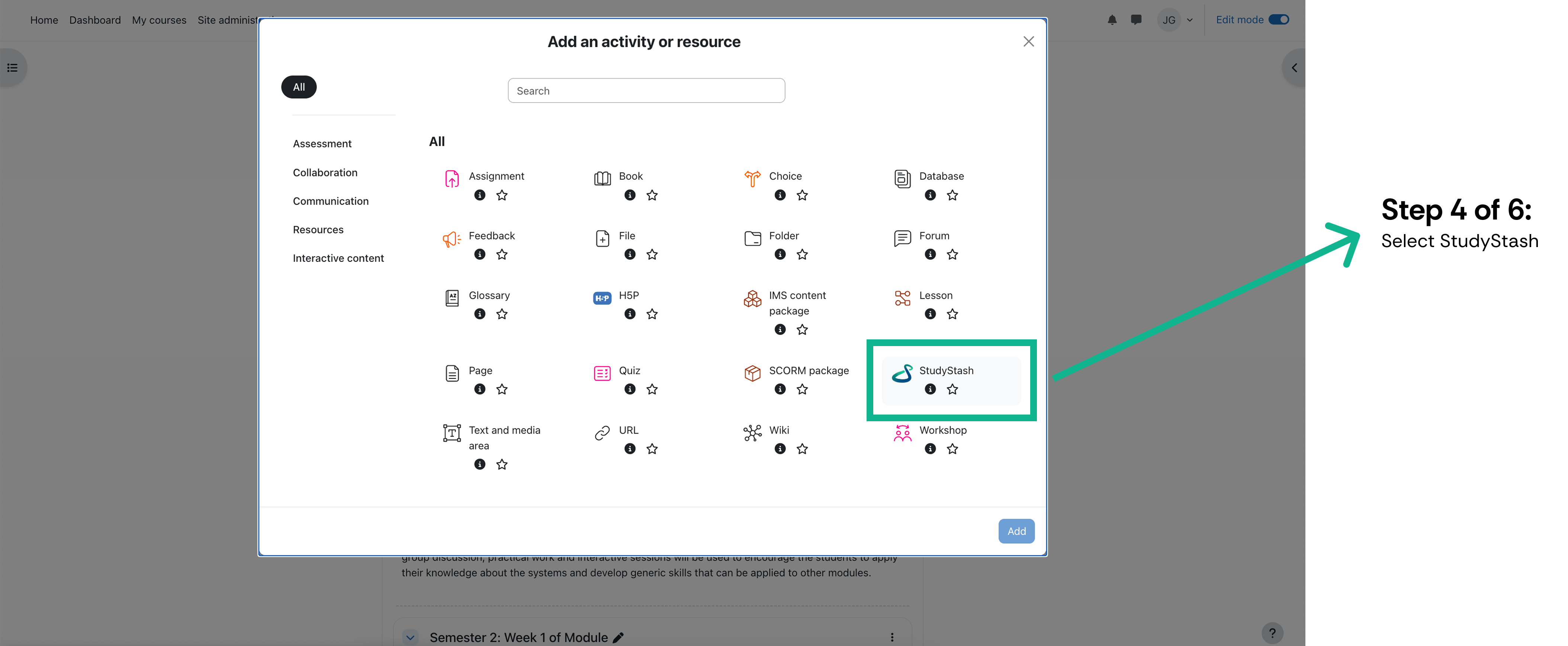
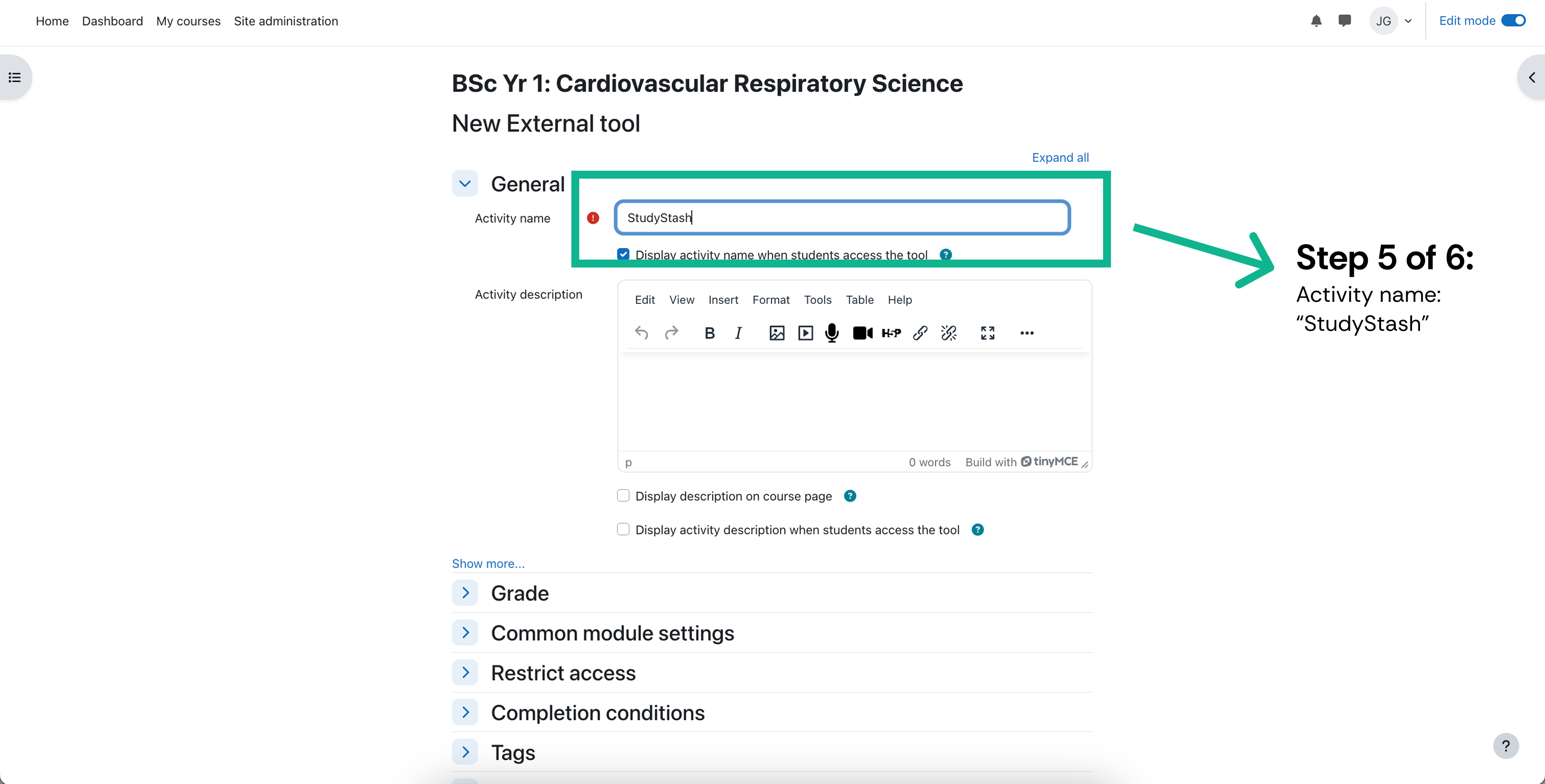
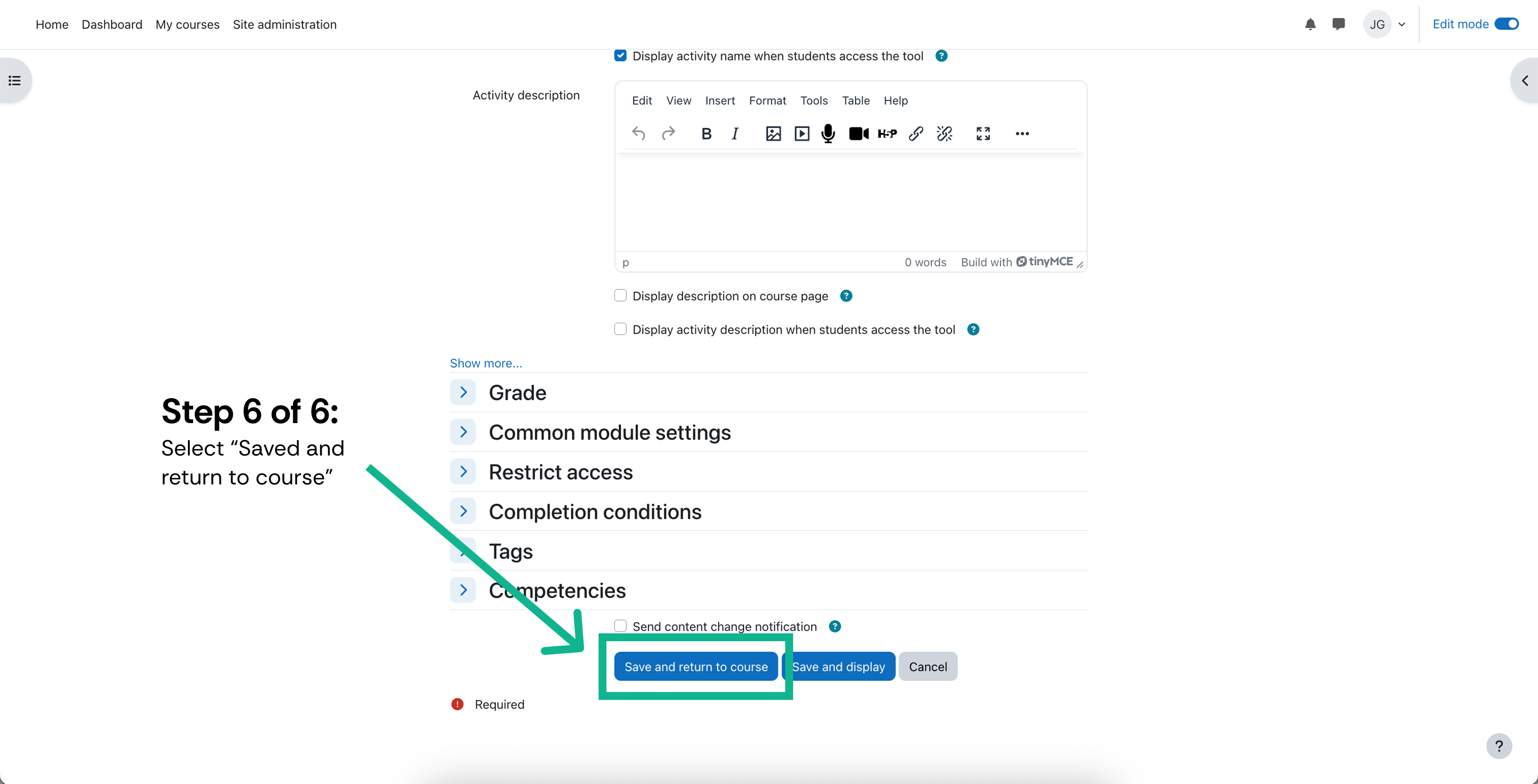
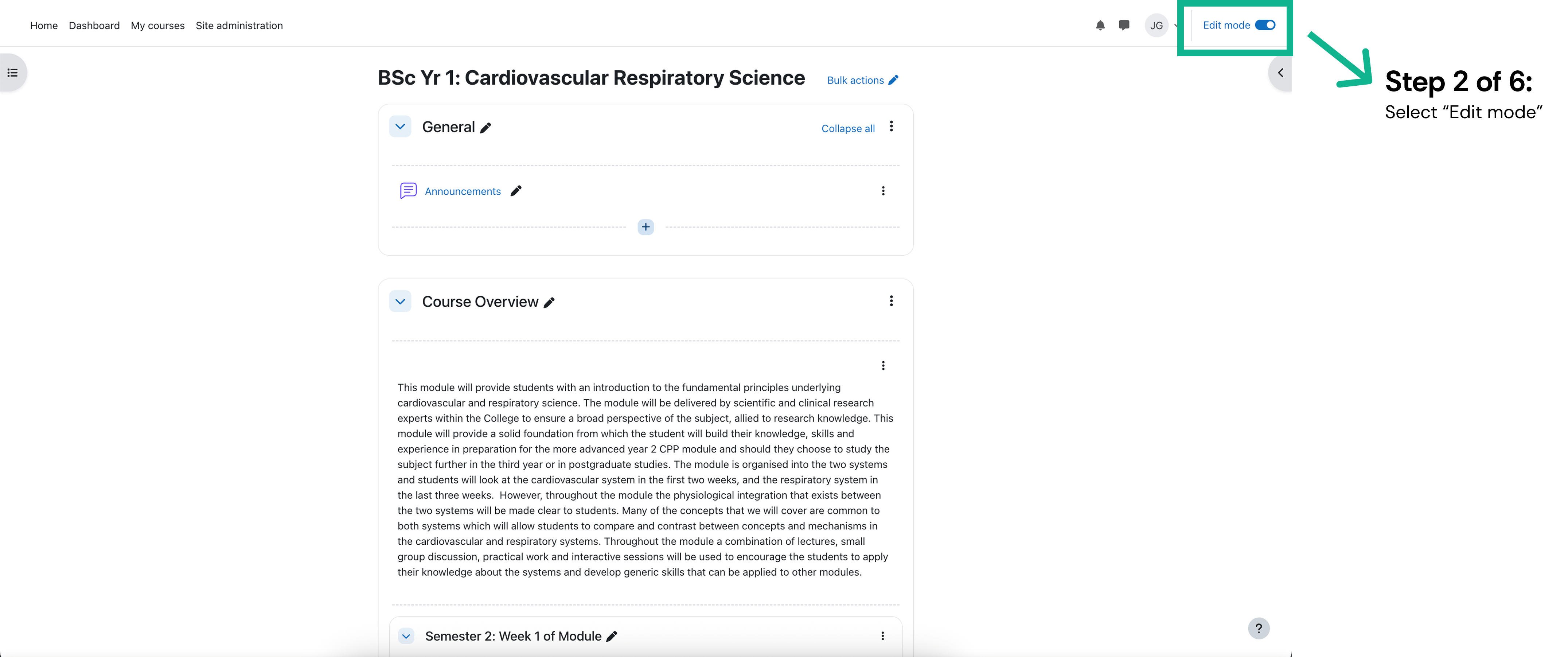
> If your course has access to StudyStash, enabling it is simple. Follow the 6 steps below to let your students start using the platform within Moodle. (4 min read)
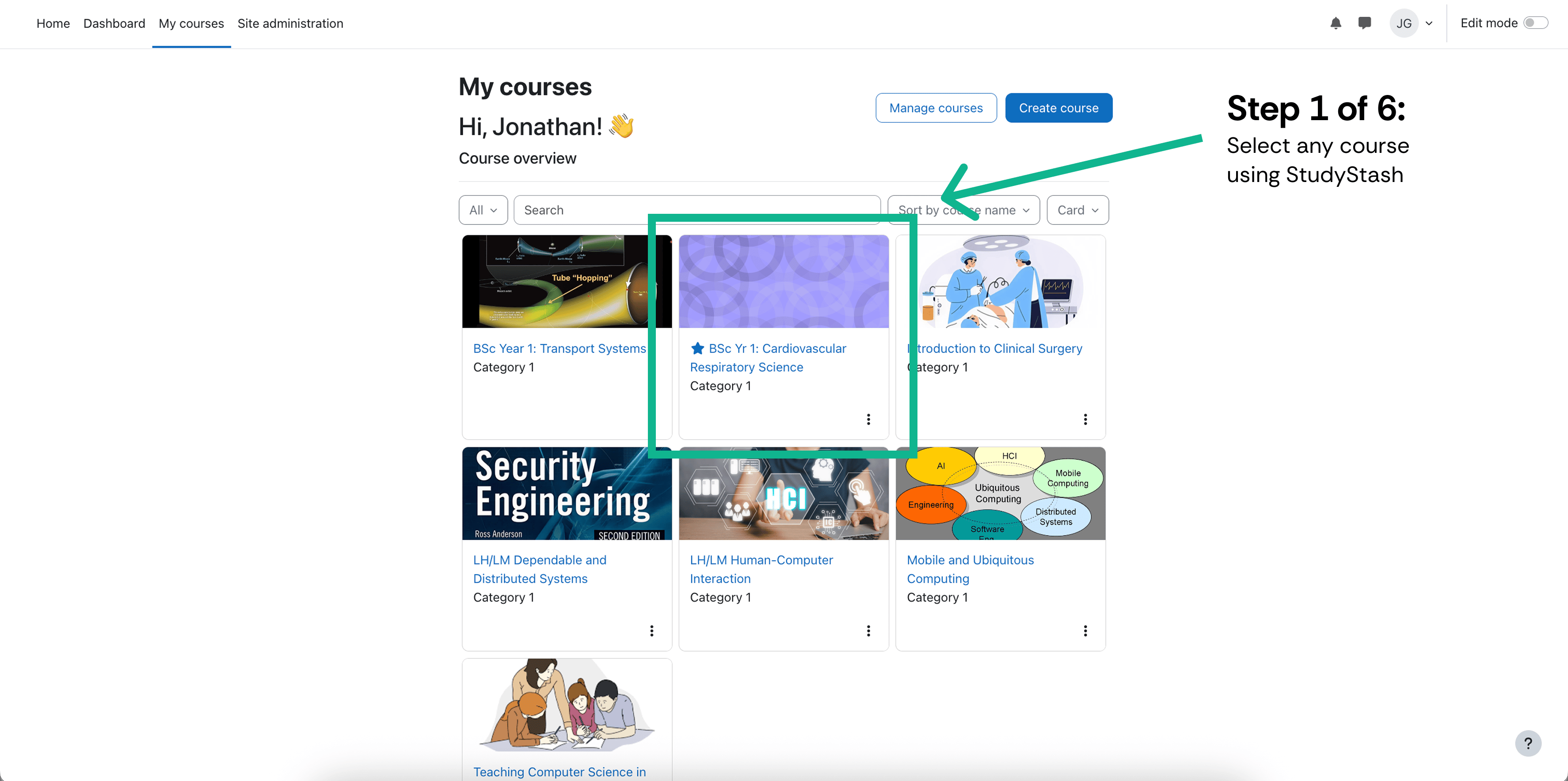
<Frame className="ss-screenshot" caption={"**Figure 1.** How do I enable StudyStash in my Moodle course? — screenshot 1"}>
  <img loading="lazy" src="https://mintcdn.com/studystash-help/UbXlxW0z5agaJ_Cy/assets/87818241/87851009-p1.png?fit=max&auto=format&n=UbXlxW0z5agaJ_Cy&q=85&s=1978d64c58d4ec56cedbbc0fb3dea4e4" alt="How do I enable StudyStash in my Moodle course? — screenshot 1" width="3548" height="1768" data-path="assets/87818241/87851009-p1.png" />
</Frame>

<Frame className="ss-screenshot" caption={"**Figure 2.** How do I enable StudyStash in my Moodle course? — screenshot 2"}>
  <img loading="lazy" src="https://mintcdn.com/studystash-help/UbXlxW0z5agaJ_Cy/assets/87818241/87785475-p2.png?fit=max&auto=format&n=UbXlxW0z5agaJ_Cy&q=85&s=f9ff26b5d7d939416fb3c3cc4585132c" alt="How do I enable StudyStash in my Moodle course? — screenshot 2" width="4302" height="1802" data-path="assets/87818241/87785475-p2.png" />
</Frame>

<Frame className="ss-screenshot" caption={"**Figure 3.** How do I enable StudyStash in my Moodle course? — screenshot 3"}>
  <img loading="lazy" src="https://mintcdn.com/studystash-help/UbXlxW0z5agaJ_Cy/assets/87818241/87490564-p3.png?fit=max&auto=format&n=UbXlxW0z5agaJ_Cy&q=85&s=e32dbdc2d27211b22bf856a59de5ee5e" alt="How do I enable StudyStash in my Moodle course? — screenshot 3" width="3510" height="1788" data-path="assets/87818241/87490564-p3.png" />
</Frame>

<Frame className="ss-screenshot" caption={"**Figure 4.** How do I enable StudyStash in my Moodle course? — screenshot 4"}>
  <img loading="lazy" src="https://mintcdn.com/studystash-help/UbXlxW0z5agaJ_Cy/assets/87818241/87457797-p4.png?fit=max&auto=format&n=UbXlxW0z5agaJ_Cy&q=85&s=df836229e6f88067c80dd554418dfec8" alt="How do I enable StudyStash in my Moodle course? — screenshot 4" width="4216" height="1736" data-path="assets/87818241/87457797-p4.png" />
</Frame>

<Frame className="ss-screenshot" caption={"**Figure 5.** How do I enable StudyStash in my Moodle course? — screenshot 5"}>
  <img loading="lazy" src="https://mintcdn.com/studystash-help/UbXlxW0z5agaJ_Cy/assets/87818241/87818248-p5.png?fit=max&auto=format&n=UbXlxW0z5agaJ_Cy&q=85&s=0978fd35bb1d4bfd4eb1585bb285504f" alt="How do I enable StudyStash in my Moodle course? — screenshot 5" width="3510" height="1782" data-path="assets/87818241/87818248-p5.png" />
</Frame>

<Frame className="ss-screenshot" caption={"**Figure 6.** How do I enable StudyStash in my Moodle course? — screenshot 6"}>
  <img loading="lazy" src="https://mintcdn.com/studystash-help/UbXlxW0z5agaJ_Cy/assets/87818241/87818254-p6.png?fit=max&auto=format&n=UbXlxW0z5agaJ_Cy&q=85&s=b9074619b1b8d9848212a204db7d61a1" alt="How do I enable StudyStash in my Moodle course? — screenshot 6" width="3510" height="1790" data-path="assets/87818241/87818254-p6.png" />
</Frame>

<Warning>
  **Caution:** If StudyStash is not an option in Step 4 then it has not been enabled for your course by your institute. Please email us at [<u>support@studystash.com</u>](mailto:support@studystash.com) or contact your Student Success Manager.
</Warning>


This documentation is built and hosted on [Mintlify](https://mintlify.com), a developer documentation platform.