> ## Documentation Index
> Fetch the complete documentation index at: https://help2.studystash.com/llms.txt
> Use this file to discover all available pages before exploring further.

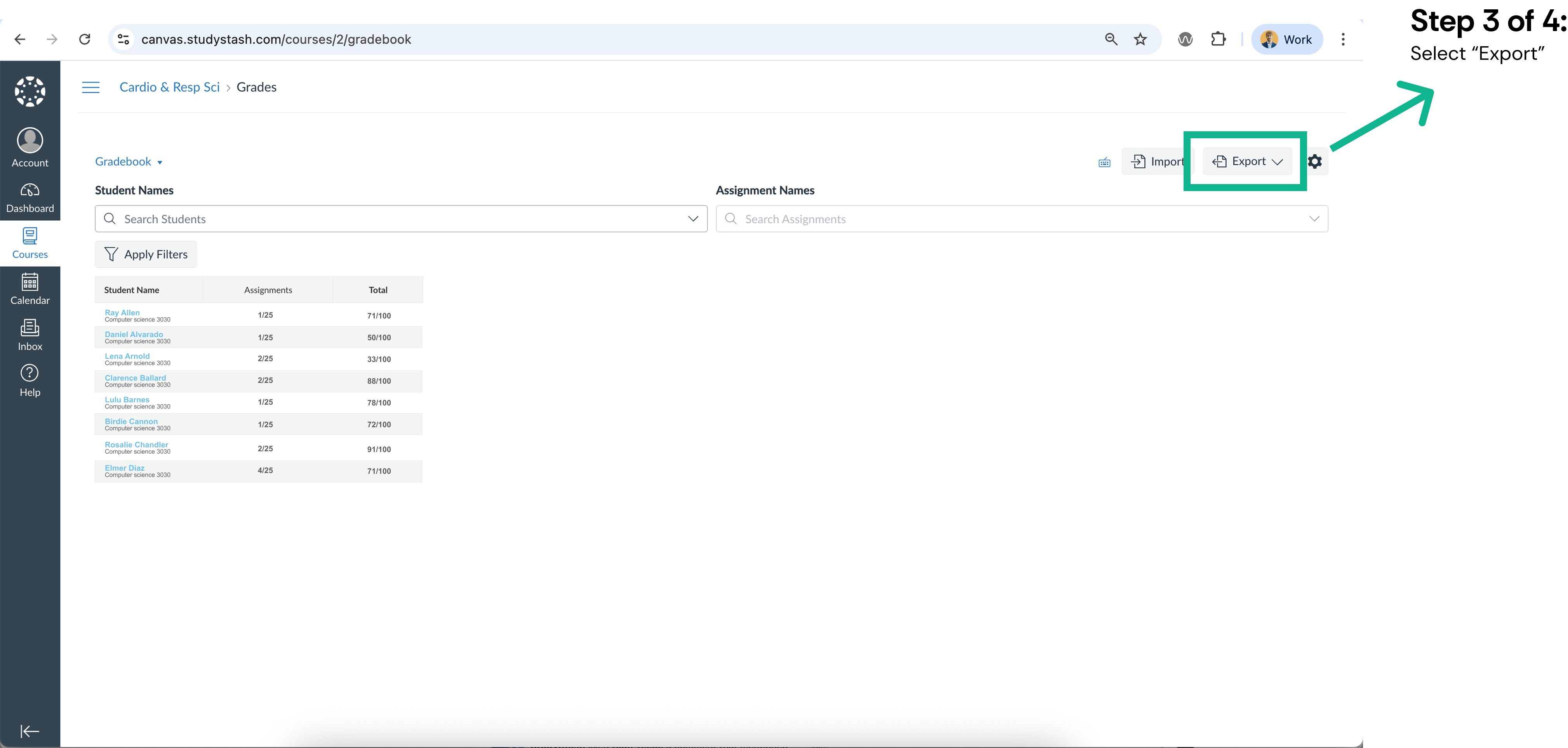
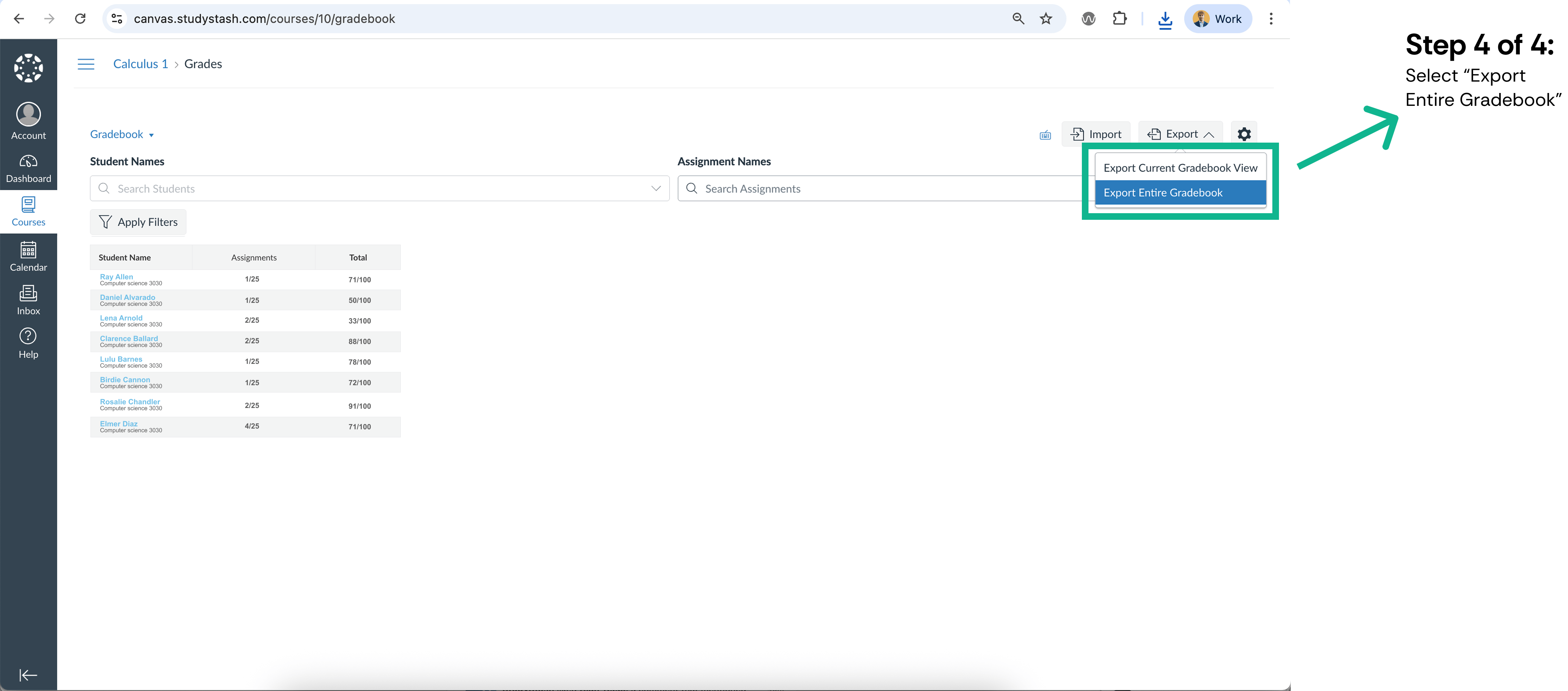
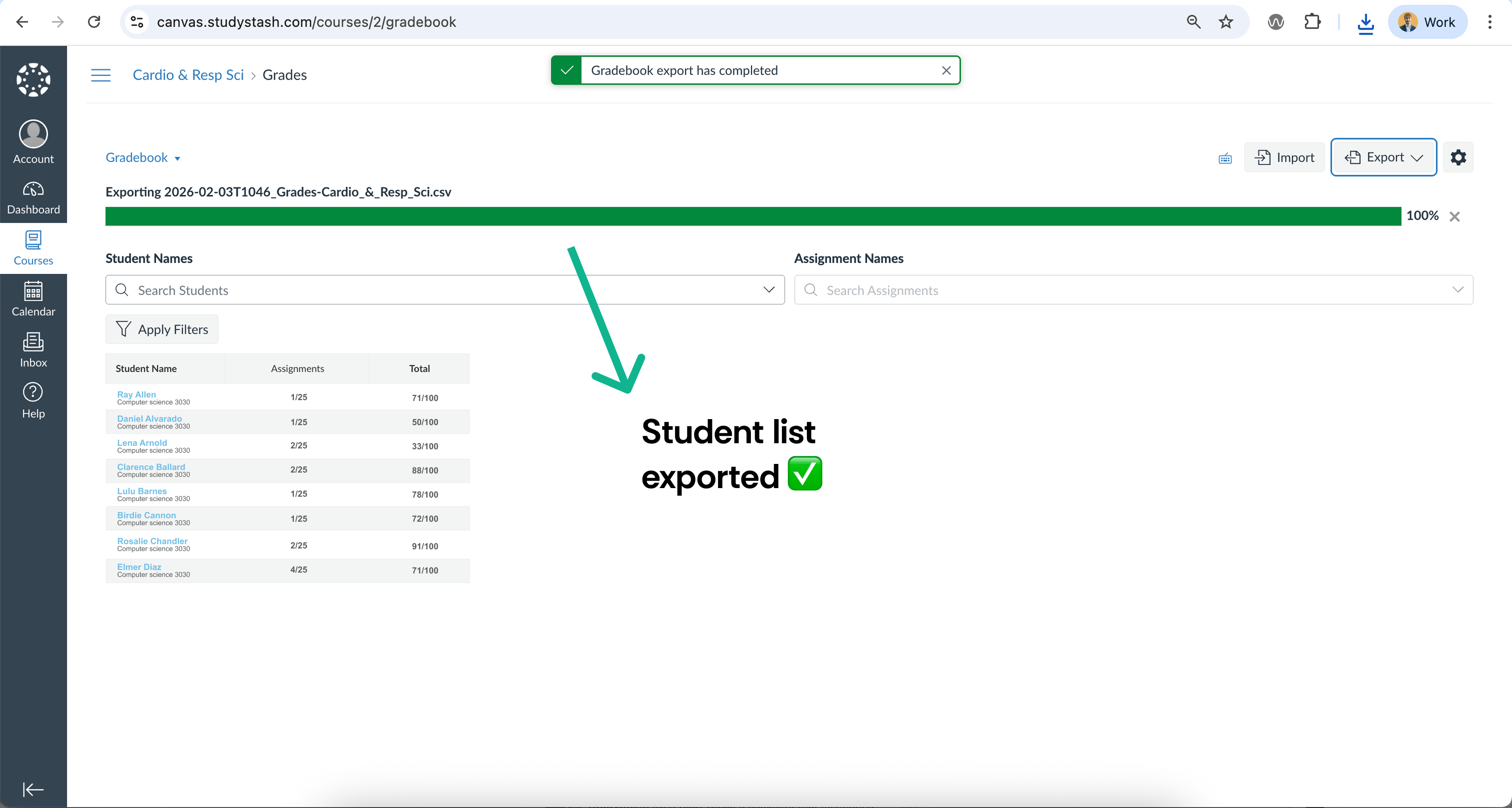
# Exporting student roster data from Canvas course (CSV)

> Downloading your student roster data from a Canvas course is simple. Follow the 4 steps below to export your class list as a CSV. (2 min read)
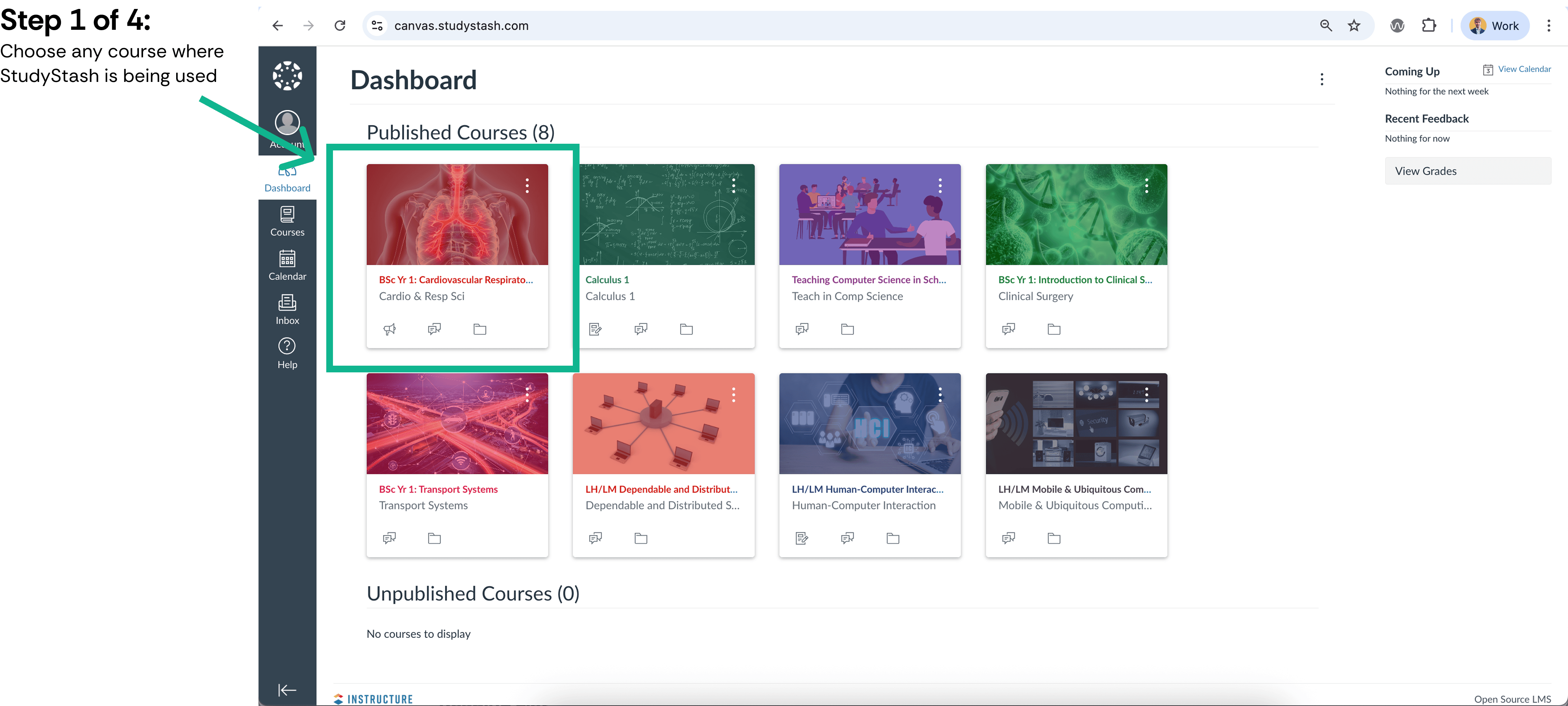
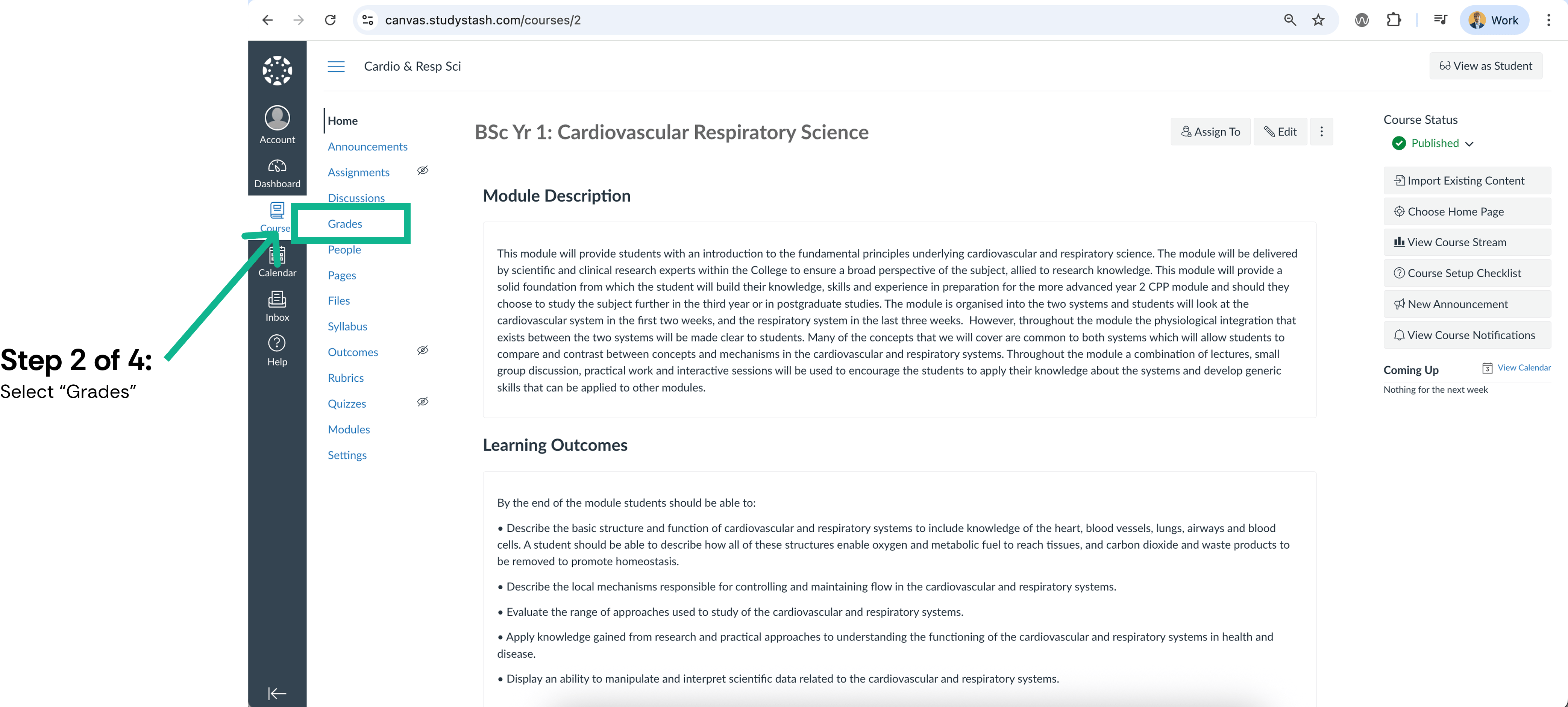
<Frame className="ss-screenshot" caption={"**Figure 1.** Exporting student roster data from Canvas course (CSV) — screenshot 1"}>
  <img loading="lazy" src="https://mintcdn.com/studystash-help/UbXlxW0z5agaJ_Cy/assets/86999106/86999115-p1.png?fit=max&auto=format&n=UbXlxW0z5agaJ_Cy&q=85&s=3973128be049a0c7e209804faed44b3a" alt="Exporting student roster data from Canvas course (CSV) — screenshot 1" width="4210" height="1896" data-path="assets/86999106/86999115-p1.png" />
</Frame>

<Frame className="ss-screenshot" caption={"**Figure 2.** Exporting student roster data from Canvas course (CSV) — screenshot 2"}>
  <img loading="lazy" src="https://mintcdn.com/studystash-help/UbXlxW0z5agaJ_Cy/assets/86999106/87162909-p2.png?fit=max&auto=format&n=UbXlxW0z5agaJ_Cy&q=85&s=3857b90a727d489169637a0d953e6f5b" alt="Exporting student roster data from Canvas course (CSV) — screenshot 2" width="4170" height="1880" data-path="assets/86999106/87162909-p2.png" />
</Frame>

<Frame className="ss-screenshot" caption={"**Figure 3.** Exporting student roster data from Canvas course (CSV) — screenshot 3"}>
  <img loading="lazy" src="https://mintcdn.com/studystash-help/UbXlxW0z5agaJ_Cy/assets/86999106/87130155-p3.png?fit=max&auto=format&n=UbXlxW0z5agaJ_Cy&q=85&s=9928f732beef5239ef8601aefe9c6556" alt="Exporting student roster data from Canvas course (CSV) — screenshot 3" width="4038" height="1926" data-path="assets/86999106/87130155-p3.png" />
</Frame>

<Frame className="ss-screenshot" caption={"**Figure 4.** Exporting student roster data from Canvas course (CSV) — screenshot 4"}>
  <img loading="lazy" src="https://mintcdn.com/studystash-help/UbXlxW0z5agaJ_Cy/assets/86999106/87097368-p4.png?fit=max&auto=format&n=UbXlxW0z5agaJ_Cy&q=85&s=b4bf71fa63a3d52b360b19ad8952a33a" alt="Exporting student roster data from Canvas course (CSV) — screenshot 4" width="4264" height="1880" data-path="assets/86999106/87097368-p4.png" />
</Frame>

<Frame className="ss-screenshot" caption={"**Figure 5.** Exporting student roster data from Canvas course (CSV) — screenshot 5"}>
  <img loading="lazy" src="https://mintcdn.com/studystash-help/UbXlxW0z5agaJ_Cy/assets/86999106/87097374-p5.png?fit=max&auto=format&n=UbXlxW0z5agaJ_Cy&q=85&s=a9734cddaca276701ba06f3cd0d97b7d" alt="Exporting student roster data from Canvas course (CSV) — screenshot 5" width="3508" height="1874" data-path="assets/86999106/87097374-p5.png" />
</Frame>

<Warning>
  **Caution:** You may not have permission to download this data. If so, a Canvas administrator will need to complete this step.

  The export may include additional fields by default. We recommend removing all data except student names and email addresses. Any other information will be securely discarded in accordance with our Data Processing Agreement and GDPR.
</Warning>


This documentation is built and hosted on [Mintlify](https://mintlify.com), a developer documentation platform.